
There are a few ways to create default values in Quality Window depending on how the value should behave.
In QW Admin:
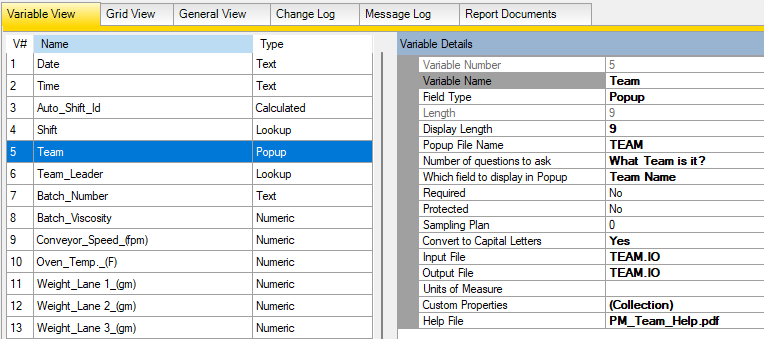
- Open the QW Application in Maintain Application
- Select the variable you want to configure

Constant Default Value (Simplest)
If the value will always be the same, use a constant input.
- In the Input setting, choose “Use protocol scheme for input / output”
- Select “Return back a constant value”
- Enter the value using the format:
CON:MyValue
Example:
CON:Line 1

This will automatically populate the variable each time a record is added. No files are required.
File-Based Default Values
Use file-based Input and Output when the value may change or should persist between entries.
To remember the last entered value:
- Enter a filename in the Input File field
- Enter the same filename in the Output File field
- Click Save
When a record is saved, the value is written to the file. When a new record is added, that value is read back and used as the default.

To use a manually controlled default:
- Enter a filename in the Input File field
- Store the desired value in the file (single line of text)
- Update the file as needed
Quality Window will read the file each time a record is added.

Video Walkthrough
For a step-by-step demonstration of these methods, refer to the video below.
Input/Output Files in Quality Window: Enhancing Data Connectivity
Learn More
For a full overview of Input Files, Output Files, and integration options (including DataHub), see:
Using Input Files and Output Files to Set Defaults and Integrate Data