
Shared Configuration is the recommended way to manage Quality Window across multiple users and workstations. It centralizes configuration settings and shared resources so they can be maintained once and used consistently across your environment.
This approach reduces setup time, improves consistency, and eliminates the need to manage configuration separately on each machine.
For full setup details, refer to the Shared Configuration Administration Guide.
What Shared Configuration Does
Shared Configuration allows you to define key system paths and resources in a single location and apply them across all connected workstations.
This includes:
- Shared configuration path
- Default data directory
- Rules definitions
- Units of measure
- Statistics settings
- Global scripts
- Security and email settings
Once configured, all users operate from the same shared configuration, ensuring consistent behavior across the system.
Recommended Network Setup
[Image Placeholder – Example folder structure showing QW Config and QW Data folders]
Set up a dedicated shared network location for Quality Window.
Recommended structure:
- QW Config → shared configuration files
- QW Data → applications, popup content, IO files, and related data
This separation helps keep configuration organized and simplifies maintenance.
Keep Drive Mappings Consistent
All workstations should map the shared location using the same drive letter.
Quality Window relies on direct file paths. If mappings differ between machines, users may encounter file resolution issues when accessing configuration or application data.
Using group policy or login scripts is recommended to standardize drive mappings.
Permissions Requirements
All users must have full access to both the shared configuration and data folders.
Required permissions include:
- Read
- Write
- Create
- Modify
Without proper access, Quality Window will not be able to update configuration or save data correctly.
How to Set Up Shared Configuration
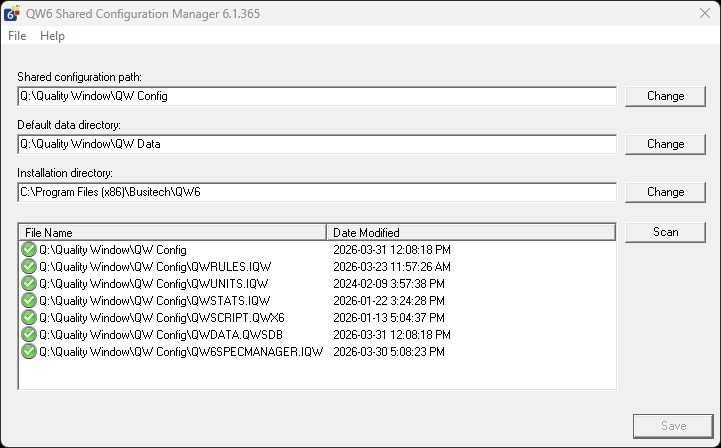
- Open QW Admin
- Launch the Shared Configuration tool
- Update the Shared Configuration Path to your network location
- Update the Default Data Directory to your shared applications folder
- Click Save
- Confirm the prompt to copy local configuration files to the shared location
After saving, the configuration is published and ready for use across all workstations.
Default Data Directory
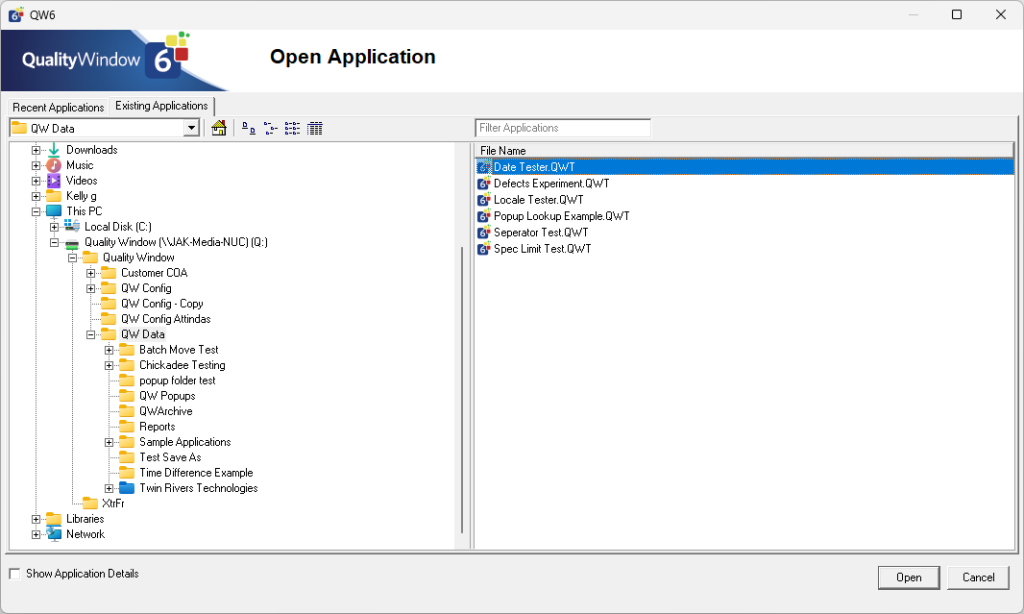
The Default Data Directory controls the location users see when opening applications.
In production environments, this should point to your shared network folder containing live Quality Window applications. This helps users quickly access the correct files and reduces navigation errors.
Installation Directory
This setting should only be changed under guidance from Busitech support.
It is used for advanced scenarios, and incorrect changes can cause the system to malfunction.
Using License Server to Standardize Configuration
If you are using the License Server, you can define shared configuration settings centrally.
This allows you to:
- Set shared paths once
- Ensure all workstations align to the same configuration
- Prompt users to update if their settings differ
Workstations can sync configuration in three ways:
- Accepting the prompt when connecting to the License Server
- Using Load Remote Configuration in QW Admin
- Using Tools > Download Shared Configuration in QW Workstation
Support Notes
Shared Configuration replaces older methods of managing shared resources across workstations.
When troubleshooting, check the following first:
- All workstations use the same mapped drive letter
- Users have full access to shared folders
- Shared Configuration Path points to the correct location
- Default Data Directory is set to the correct application folder
- Configuration has been saved and published successfully