
If you are seeing the message:
“Temporary view or filter detected — Add, Insert, and Copy are disabled. Reload required (save the view first if needed, click for help)“

this article explains why and what your options are.
Why This Change Was Made
To strengthen traceability within the Rules and Alarms engine, Quality Window no longer allows new records to be added while Workstation is in a temporary view or filter state.
Traceability is critical in regulated and audit-driven environments. Creating records from a temporary or modified dataset view can introduce ambiguity in how those records were initiated. To prevent this, record creation is restricted unless the dataset has been loaded from a saved state.
What Is a Temporary View or Filter?
You are in a temporary state if:
- You changed a view (variables, configuration, order, or settings) and did not load a saved version
- You applied a custom filter that has not been saved
- You modified a view and clicked Run without loading a saved view
A long-standing indicator of this condition is the Filter button turning yellow.

This has always indicated that a temporary filter or unsaved view state is active. The new banner simply makes this condition explicit.
In this state:
- Add, Insert, and Copy are disabled
- Edit and Delete remain available
- Filters can still be used to locate records
Filtering for editing or deletion is not affected.
How to Re-Enable Add, Insert, and Copy
Option 1 — Reload
Click Reload in the toolbar.

Reload will:
- Revert to the last loaded saved view
- Or return to the default dataset if no saved view was loaded
- Clear temporary filters and unsaved view changes
After reload, Add, Insert, and Copy will be available again.
Option 2 — Save and Load the View
If you want to preserve your changes and continue adding records:
- Open View Manager
- Provide a View name or select the view you want to updates
- Click Save and Load
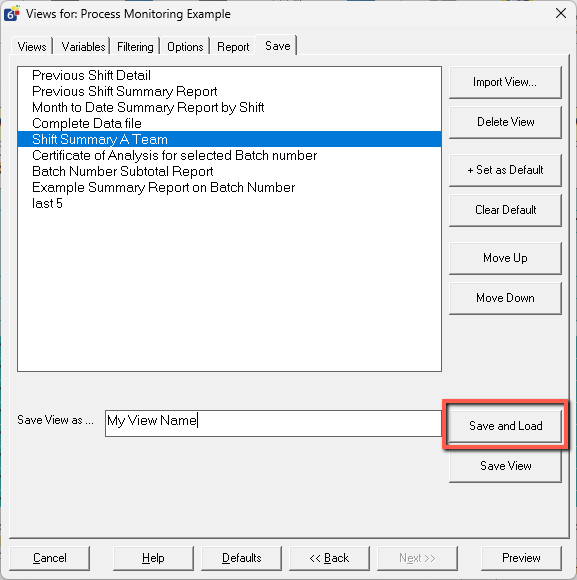
A view must be both saved and loaded before record creation is allowed. Saving alone does not re-enable Add, Insert, or Copy.
If This Change Disrupts Your Workflow
If your organization does not use Rules and Alarms, you may disable them entirely in the Rules and Alarms Configuration console in QW Admin. When all Rules and Alarms are disabled, record creation is allowed even in temporary view or filter states.
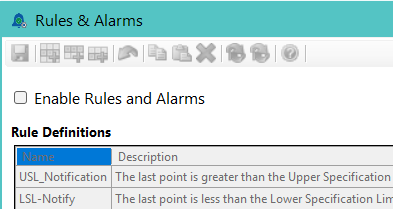
Disabling Rules and Alarms removes the traceability protections described above. This should only be done if those protections are not required in your environment.
For instructions on disabling Rules and Alarms, see: Rules and Alarms Admin Guide
Summary
- The yellow Filter button indicates a temporary state
- Record creation is restricted only in temporary view or filter states
- Editing and deleting records is not affected
- Reload restores record creation capability
- A view must be saved and loaded before adding records
- Disabling all Rules and Alarms removes this restriction