
Directory Files allow administrators to control and simplify how users access Quality Window applications. They act as a curated launcher, bringing together applications from multiple locations into a single, controlled experience.
They are used to define which applications are available to users and streamline how those applications open based on the user’s role or workstation.
Key Concepts
- Directory Files organize Quality Window applications
- They define a controlled Open experience for users
- Users are restricted to only the applications defined in the Directory File
- Directory Files can be assigned through security to control access by user
- Views are the key mechanism for tailoring the user experience per workstation or role
Creating and Editing a Directory File
Directory Files are created and managed in QW Admin using the DIR File Editor.
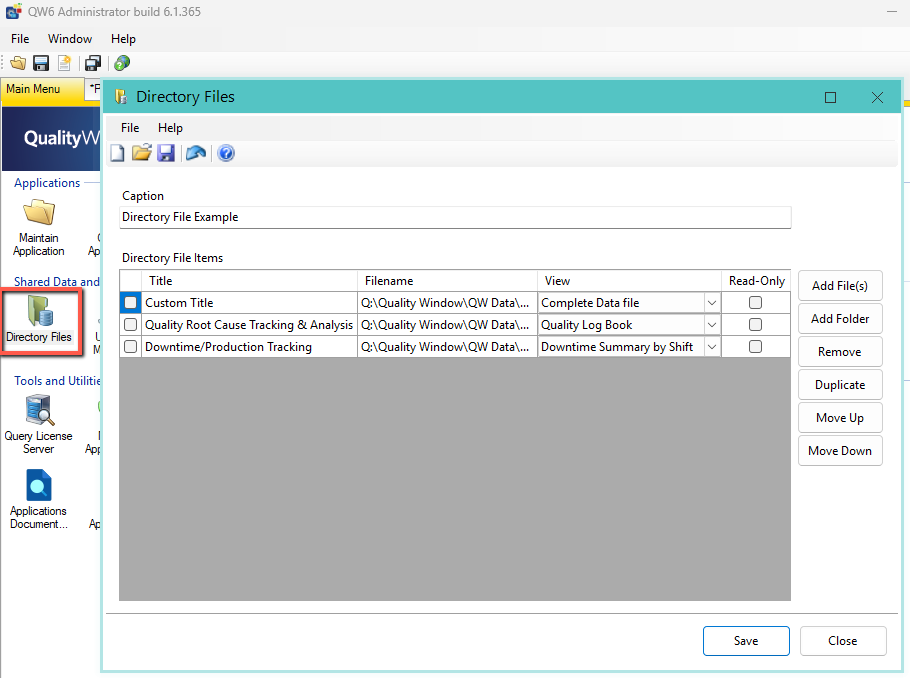
To create or edit a Directory File
- Open QW Admin
- Open the DIR File Editor
- Add applications using:
- Add File(s) to include individual applications
- Add Folder to include multiple applications from a directory
Configuring Applications
Each entry in the Directory File defines how that application will behave for the user.

Title
Used only within the DIR File Editor for organization.
The actual application title is what users will see in the Open screen.
Filename
The full path to the application.
View (Recommended)
The View setting is one of the most important configuration options.
It allows you to control what the user sees when the application opens.
- You can assign a specific view per application
- The application opens directly into that view
- This removes navigation and reduces user error
This enables role-based or workstation-specific experiences.
Example:
- Workstation 1 → opens Application A with Operator View
- Workstation 2 → opens the same Application A with Supervisor View
Same application, different experience — controlled entirely through the Directory File.
Important:
- The View setting defines the default view on open only
- It does not restrict access to other views within the application
Read-Only
When enabled, the application opens in view-only mode in Workstation.
Common use cases:
- Display stations
- Reporting screens
- Supervisor dashboards
View vs Security (Important)
It’s important to understand the difference between Views and Security:
- Views control the starting experience (what the user sees when the application opens)
- Security controls what the user is allowed to access
This means:
- A Directory File can open an application into a specific View
- But users can still switch to other views unless access is restricted through security
If you need to fully restrict access:
- Use Directory Files to control what opens
- Use Security to control what users can access after opening
Caption
Set a meaningful Caption for the Directory File.
This is what users will see when launching the file.
Saving the Directory File
Save the Directory File with a clear, descriptive name that reflects its purpose or workstation.
Creating a Desktop Shortcut (Recommended)
To simplify access for operators:
- Open the Directory File in the editor
- Use the Create Shortcut option from the File menu
- Place the shortcut on the desktop or appropriate workstation
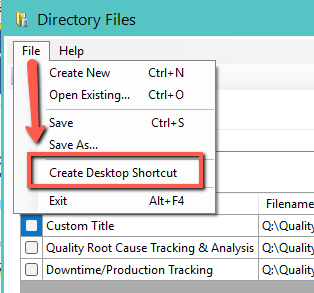
This allows users to launch QW directly into their curated environment.
Assigning Directory Files via Security
Directory Files can be assigned through Quality Window security settings to control what users can access when logged in.
- Users will only see applications defined in their assigned Directory File
- This provides user-level control, not just workstation-level control
- Can be used alongside desktop shortcuts or independently
This is especially useful for:
- Restricting access by role (operator, supervisor, lab)
- Ensuring consistent access across shared machines
- Enforcing controlled environments in regulated operations
User Experience
When a user launches Quality Window using a Directory File (via shortcut or security):
- Only the defined applications are visible
- Applications open directly into the configured View
- Users cannot browse or open other applications
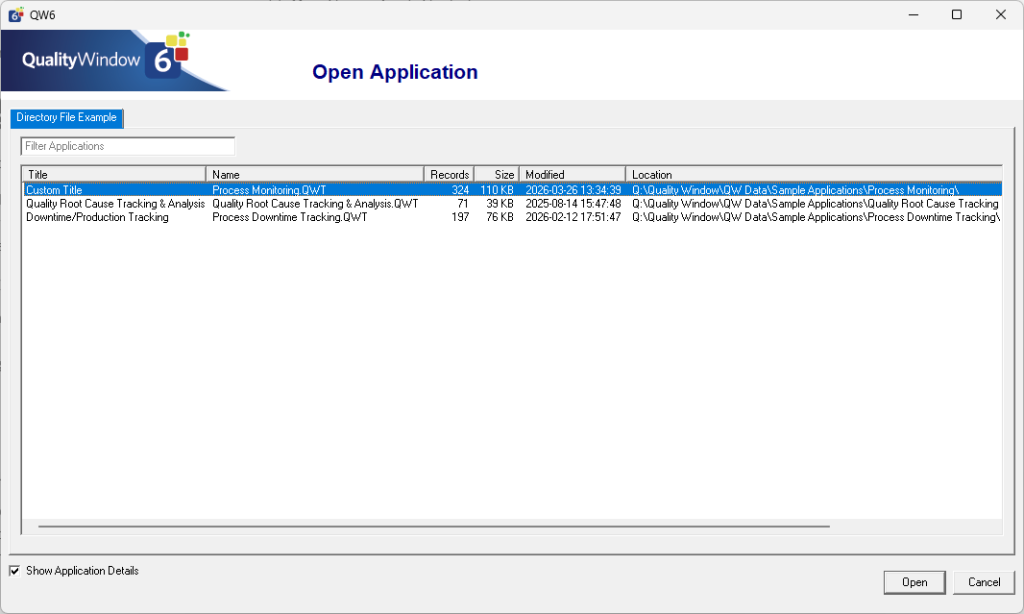
This creates a focused and consistent experience tailored to the workstation or user role.
When to Use Directory Files
Directory Files are especially useful when:
- Different workstations require different views of the same application
- You want to enforce operator vs supervisor experiences
- You need to simplify navigation on the shop floor
- Applications are distributed across multiple folders or drives
- You want consistent, repeatable setups across multiple machines
- You need to control access at the user level via security
Summary
Directory Files provide a structured way to control how users interact with Quality Window.
By combining:
- Controlled application access
- Predefined Views (default experience)
- Read-only enforcement
- Security-based assignment
you can ensure each user or workstation sees exactly what they need — no more, no less.