
Views in Quality Window allow you to define Targets, Specification Limits, Warning Limits, and Control Limits based on a specific context.
A key concept is that a view can only have one active set of limits at a time. To support different limits (for example by product, customer, or process condition), multiple views must be used.
When to Use Views for Limits
Views are commonly used when:
- Different products require different limits
- Customer-specific limits need to be applied
- You want separate limits for setup, production, or validation
- Warning and control limits differ from specification limits
- Summary or reporting views require limits based on calculated values
Each view maintains its own set of:
- Target
- LSL / USL (Specification Limits)
- Warning Limits
- Control Limits
How to Set Limits in a View
View configuration is performed in QW Workstation using the Views Manager.
- Open the application in QW Workstation
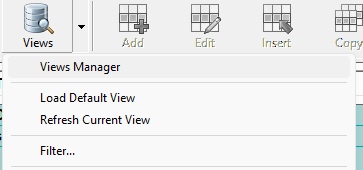
- Open Views Manager
- Select Current Unsaved View or a specific view and click Edit
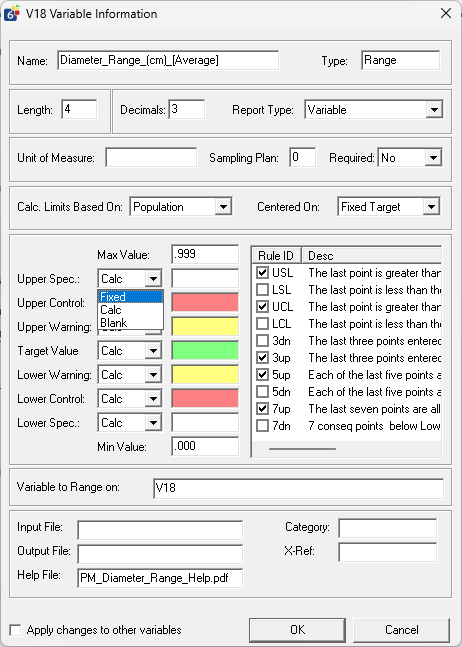
On the Variables tab:
- Double-click the variable you want to modify
- Set the Target and required limits (Specification, Warning, Control)
- Click OK
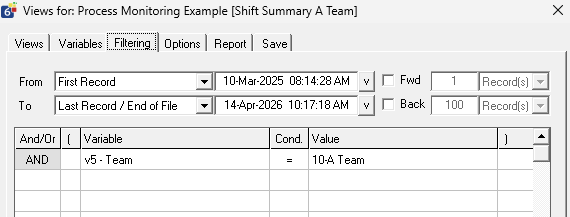
On the Filtering tab:
- Select the variable to filter on
- Enter the value to define the context (for example, product or batch)
On the Save tab:
- Enter a meaningful name for the view
- Click Save View
- Run the view
Managing Limits at Scale with Spec Manager
When working with many views or applications, managing limits manually in Workstation becomes inefficient.
Spec Manager in QW Admin is designed for bulk updates across views and applications.
With Spec Manager, you can:
- Load multiple applications into a single workspace
- Filter applications and variables to target specific updates
- Edit limits (LSL, USL, UCL, LCL, UWL, LWL, TGT) across many views at once
- Apply bulk changes using fill, replace, or calculated adjustments
- Commit updates across selected applications in a single action
The tool operates as a bulk editing grid where each row represents a variable within an application or view, allowing rapid updates without opening each view individually .
Filtering capabilities allow you to narrow down which applications or variables are affected, making it practical to manage large deployments with many similar configurations .
Limit Method: Fixed vs Calculated
Each limit in a view can be configured using a limit method.
- Fixed: Uses manually defined limit values
- Calculated: Derives limits automatically based on the data and selected calculation method
- Blank: No limits applied
Setting limits to Calculated allows you to analyze process performance without enforcing fixed specifications.
This is useful for:
- Evaluating whether current specifications are appropriate
- Understanding natural process variation
- Identifying when limits are too tight or too loose
- Supporting continuous improvement efforts
This approach is commonly used in analysis or summary views where the goal is to understand performance rather than enforce compliance.
Using Limits with Rules and Alarms
Limits defined in a view can be used in conjunction with Quality Window’s rules and alarms to trigger notifications or require user action.
This allows you to:
- Trigger alarms when values exceed specification, warning, or control limits
- Require operator acknowledgment when limits are violated
- Apply different alarm behavior based on the active view
Because each view can have its own set of limits, this enables different monitoring strategies such as:
- Production view with strict alarm thresholds
- Setup or validation view with wider limits and fewer alarms
- Analysis view using calculated limits without triggering alarms
This approach ensures that alarms are aligned with the operational context, rather than being fixed across all scenarios.
Summary and Reporting Views
Views used for summary or reporting can have their own limits.
This is especially useful when working with calculated or statistical values such as:
- Average
- Standard Deviation (SD)
- Count
- Sum
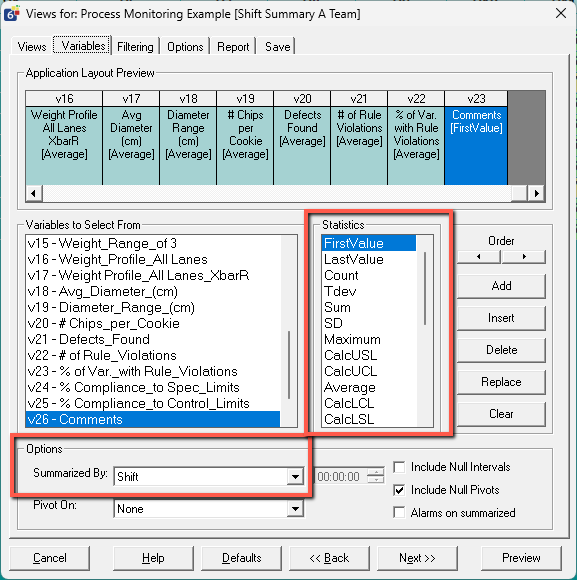
These views allow limits to be applied to performance metrics rather than individual data points.
Key Considerations
- A view can only have one set of limits at a time
- Multiple views are required to support multiple limit scenarios
- Filters are often used to tie a view to a specific context (product, process, etc.)
- Limits in views do not change the base application — they only apply within that view
- View configuration is done in Workstation, while bulk management is handled in QW Admin using Spec Manager