
Quality Window supports deploying scripts at different levels depending on where you want the functionality to be available.
Scripts are automatically combined at runtime, allowing you to control scope, reuse logic, and override behavior when needed.
Script levels
Quality Window supports three script levels:
- Application level
- Folder (directory) level
- Global level
Scripts are merged when an application is opened.
If the same function exists in more than one level, the lowest level takes priority:
- Application overrides Folder
- Folder overrides Global
This allows you to define shared behavior globally and override it only where needed.
Script file structure
Scripts are stored as script files and loaded based on their scope.
- Global script is stored as a
.QWX6file and applies to all applications - Folder script is stored as a
.QWXfile and applies to all applications in a directory - Application script is stored as a
.QWXfile and applies to a single application
All applicable scripts are combined at runtime when an application is opened.
Before you begin
Most scripts are provided as .QWX files.
To deploy a script:
- Open the
.QWXfile in a text editor such as Notepad - Copy the full contents of the file
You will paste this content into the appropriate script level.
Global script deployment
Use this when the script or macro should be available across all applications.
Typical use:
- Shared macros (menu functions)
- Standard reporting tools
- Company-wide utilities
Steps:
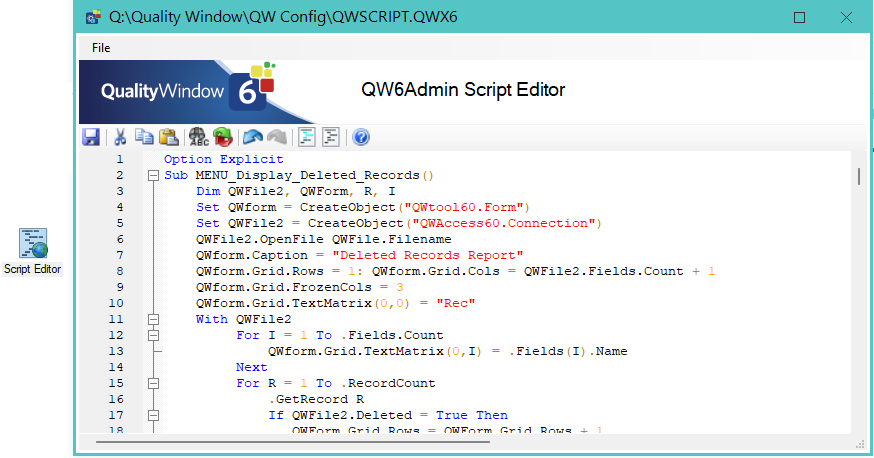
- Open QW Admin
- Open the Script Editor (this opens the Global Script by default)
- Paste the script content at the bottom of the existing script
- Save the script
Restart Quality Window to ensure the script is loaded.
Open any application and test.
Notes:
- Global scripts are always loaded
- Macros defined as
MENU_functions appear in the Macros menu
Folder script deployment
Use this when the script should apply to a group of related applications stored in the same folder.
Typical use:
- Department-level functionality
- Shared logic across a process area
- Common integrations such as Excel templates
Steps:
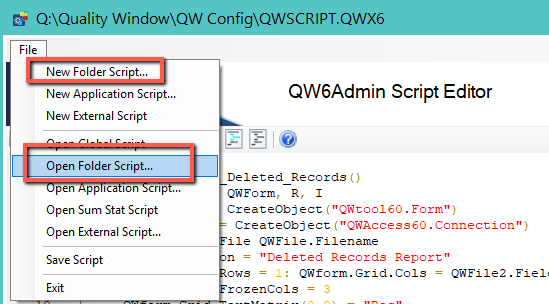
- Open QW Admin
- Open the Script Editor
- Use the File menu to open or create a Folder Script
- Paste the script content
- Save
Restart Quality Window if it is already running.
Open an application in that folder and test.
Optional approach:
- Rename the script file to
QWScript.QWX - Place it directly in the target folder
Notes:
- Applies automatically to all applications in that folder
- Combines with Global Script at runtime
Application script deployment
Use this when the script is specific to a single application.
Typical use:
- Application-specific automation
- Custom Excel integrations
- Controlled or validated workflows
Steps:
- Open QW Admin
- Open the target application
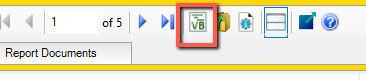
- Click Edit Application Script icon
- Paste the script content into the editor
- Save
Restart Quality Window if needed.
Open the application and test.
Alternative approach:
- Save the script as:
<ApplicationName>.QWX - Place it in the same directory as the application
Notes:
- This level overrides Folder and Global scripts when functions overlap
- Best used when behavior must be tightly controlled
Runtime behavior
When an application is opened, Quality Window loads and combines:
- Global script
- Folder script (if present)
- Application script (if present)
If duplicate functions exist:
- Application overrides Folder
- Folder overrides Global
This allows layered behavior with controlled overrides.
Macro vs user exit scripts
There are two main types of scripts in Quality Window.
Macros
- Defined using
Sub MENU_<Name>() - Appear in the Macros menu
- Triggered manually by the user
Typical use:
- Reports
- Data exports
- Excel integrations
User exits
- Trigger automatically during application events
Common examples:
QW_InitializeQW_BeforeDisplayQW_AfterUpdate
These allow automation during Add/Edit operations and other lifecycle events.
Deployment best practices
- Restart Quality Window after making script changes
- Avoid duplicating function names across levels unless intentional
- Use Global scripts for shared utilities
- Use Folder scripts for process-level logic
- Use Application scripts for controlled or application-specific behavior
- Test scripts in a non-production environment before rollout