
Manufacturing data is not always available at the same time. Process readings may be entered during production, while quality results arrive later. Operators may also need to correct a value or add a comment to an existing record.
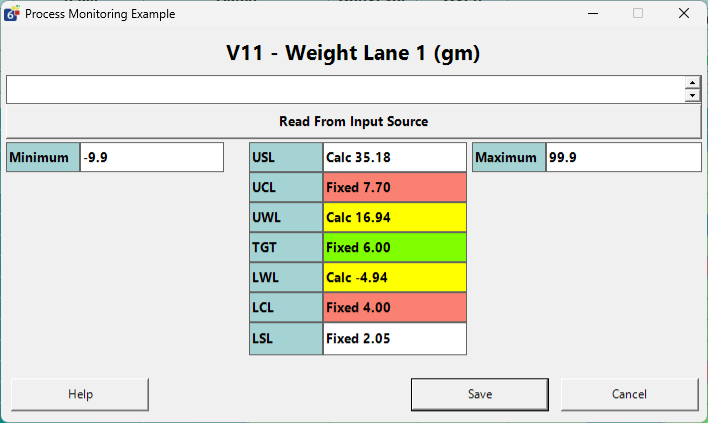
Cell Edit Mode makes these updates easier by opening an editor for one Variable directly from the Logsheet. Users can focus on the value they need to change without opening the full Edit screen.
The editor provides the appropriate controls for the Variable, including numeric entry with limits, selection lists, individual sample values, and comments. Existing security settings continue to apply.
*** Cell Edit Mode does not support script integrations as part of this release. If your deployment leverages custom scripting related to Editing records, this feature is not recommended.
Enable Cell Edit Mode
Cell Edit Mode is off by default. You can enable it through the global QW Admin setting or configure it for an individual application.
Set the global option
- Open QW Admin.
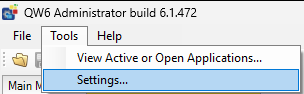
- Select Tools → Settings.
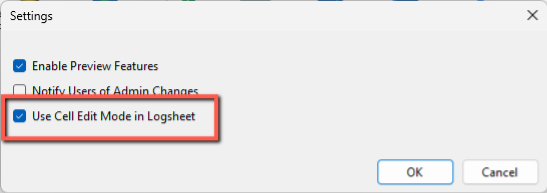
- Select Use Cell Edit Mode in Logsheet.
- Click OK.
Applications set to Inherit use this global setting.
Set the option for an application
- Open the application in QW Admin.
- Select the Settings tab.
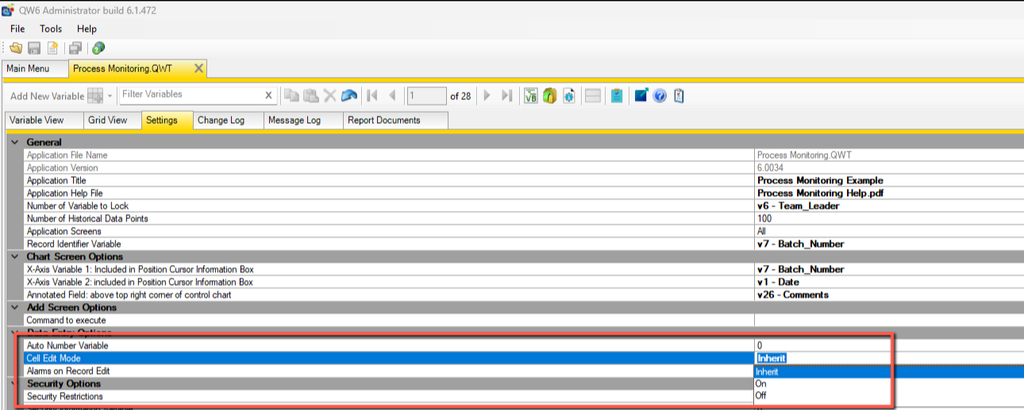
- Under Data Entry Options, locate Cell Edit Mode.
- Select the appropriate option:
| Option | Behaviour |
|---|---|
| Inherit | Uses the global Cell Edit Mode setting. |
| On | Enables Cell Edit Mode for this application. |
| Off | Disables Cell Edit Mode for this application. |
- Save the application.
After changing either setting, reopen the application in QW Workstation for the change to take effect.
Edit a Value in the Logsheet
- Open the application in QW Workstation and display the Logsheet.
- Locate the record and Variable you want to change.
- Double-click the cell, or select it and press Enter.
- Enter or select the new value.
- Click Save or press Enter to save the change. Click Cancel to close the editor without saving.
The editor varies according to the Variable. Numeric editors display the applicable limits, selection editors provide the available choices, and comments provide a text entry area.
For an average Variable, you can edit the individual sample values. Quality Window recalculates the average when you save.
Read a Value from an Input Source
The Read From Input Source button allows you to read input files from connected data sources. This provides another way to enter a value without manually typing it.

For broader data collection needs, QW DataHub connects Quality Window to sources such as equipment, historians, and databases, and supports scheduled record creation. It can help reduce manual entry when production data is already available electronically. Contact support@busitech.com to discuss your data sources and collection requirements.
Security and Editing Restrictions
Cell Edit Mode respects all existing security settings, including Edit permissions and protection of Variables. Protected Variables remain subject to the existing override controls.
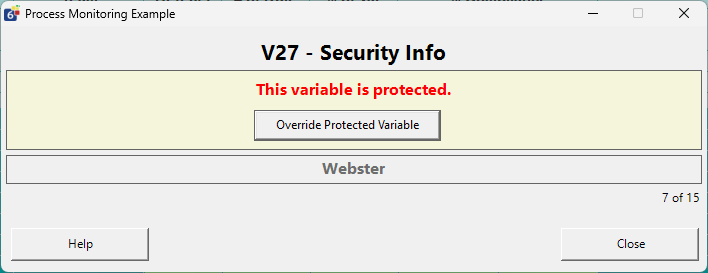
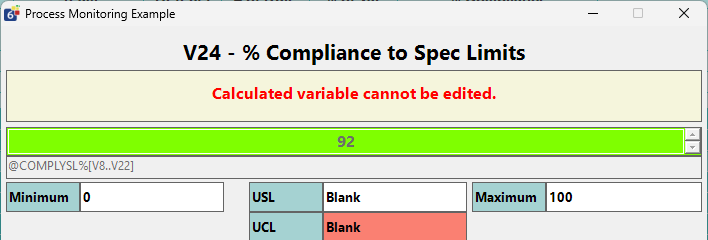
Lookup and calculated Variables cannot be edited directly.
Rules and Alarms
Enabling Cell Edit Mode does not enable alarm processing on record edits. That behaviour is controlled separately by Alarms on Record Edit.
When alarm processing on edits is enabled, changed Variables and affected calculated Variables are evaluated. Unchanged values do not retrigger alarms or resend alarm emails.
An alarm that requires acknowledgement and blocks data entry also blocks single-cell editing in the current View until it is acknowledged.
Related Resources
- How to Make a Variable Read-Only (Protected) in Quality Window
- Configuring the Last Value Feature (F9)
- How do I restrict data entry for different user groups in Quality Window?
- How do I create a default value in Quality Window?
- Using Input and Output Files In Quality Window
- Using Checkboxes in Quality Window