
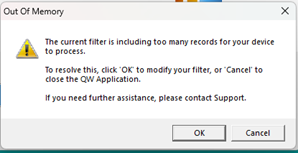
What Does This Message Mean?
Quality Window displays this message when the current filter is taking too long to load and the application is at risk of becoming unresponsive.
The message commonly appears when too much data is being processed at once.
Is This Caused Only by the Number of Records?
No.
The number of records is often a major factor, but performance also depends on:
- The number of variables being loaded
- Statistical calculations performed as data loads
- Colour and alarm evaluation
- Popup and lookup value resolution
- Network performance
- File-server response time
- Available workstation resources
A smaller number of records can still load slowly if the application contains a large number of variables.
What Happens When I Select OK?
Selecting OK opens the Filter window with the current filter settings preserved.
You can then adjust the filter and select Preview to try loading the data again.
What Happens When I Select Cancel?
Selecting Cancel closes the current Quality Window application.
The Quality Window workstation remains open.
How Do I Resolve the Issue?
First, determine how the application is loading its initial data.
If the Application Does Not Use a Default View
Review the Number of Historical Data Points setting in QW Admin.
For most routine data-entry use cases, we recommend loading between 100 and 500 recent records.
A value of -1 tells Quality Window to load all records and is not recommended for applications with a large record history or a large number of variables.
[Image placeholder: Number of Historical Data Points setting in QW Admin]
If the Application Uses a Default View
The Number of Historical Data Points setting is ignored.
Open the default View’s filter and review:
- The number of records being loaded
- The date range
- The number of variables included
- Any variable filter conditions
Narrow the filter where possible and select Preview to test the result.
[Image placeholder: Filter window opened from View Manager]
Can I Still Review Older Historical Data?
Yes.
A common approach is to use:
- A smaller recent dataset for routine data entry
- A separate View for historical review
This keeps the normal data-entry experience responsive while preserving access to older records when required.