
Production readings and quality results do not always arrive together. A process record may be created during production, with laboratory or inspection results added later. Those later results still need attention when they violate a configured rule.
Quality Window 6.1.478 lets teams enable rules and alarm processing when historical records are edited. This allows a result entered after the original record was created to trigger an applicable alarm, including configured acknowledgement requirements, emails, and notifications.
Processing rules and alarms on historical edits is optional and off by default. When disabled, only edits to the last record recalculate rules and alarms.
You can configure the global setting or control the behavior for an individual application.
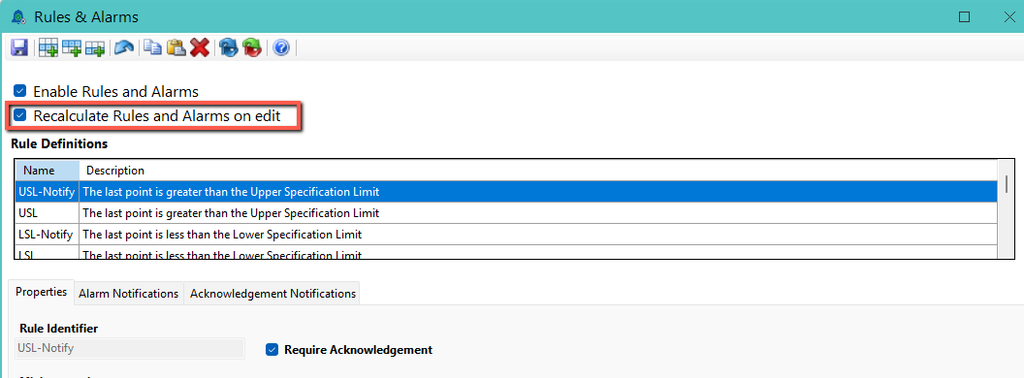
Set the global option
- Open the Rules and Alarms Admin Console.
- Enable Recalculate Rules and Alarms on Edit.
- Save your changes.
Applications set to Inherit use this global setting.
Set the option for an application
- Open the application in QW Admin.
- Select the Settings tab.
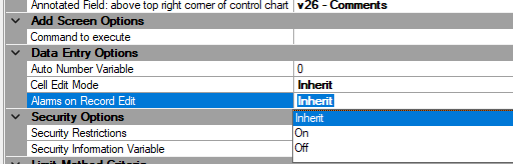
- Under Data Entry Options, locate Alarms on Record Edit.
- Choose whether the application should inherit the global setting, enable processing, or disable processing.
- Save the application.
Inherit follows the global setting. Explicitly enabling or disabling the option for an application overrides the global setting.
What Happens When a Record Changes?
When alarm processing on edits is enabled, Quality Window evaluates changed Variables and affected calculated Variables. If a changed value creates a rule violation, it can trigger the applicable alarm.
For example, an operator may record production readings while a laboratory result is still pending. When the laboratory result is added to that historical record, Quality Window can evaluate it and trigger an alarm if it violates a configured rule.
Unchanged values do not retrigger alarms or resend alarm emails. Editing one result therefore does not cause unchanged results in the same record to generate duplicate notifications.
Using This with Cell Edit Mode
Cell Edit Mode lets users update one Variable directly from the Logsheet without opening the full Edit screen. This can make it easier to add laboratory or inspection results to existing records.
Cell Edit Mode and alarm processing on record edits are configured independently. Enabling Cell Edit Mode does not enable alarms on historical edits.
Cell Edit Mode does not support custom editing script integrations in this release. If your application relies on custom scripts related to editing records, review the Cell Edit Mode article before enabling that feature. This limitation is specific to Cell Edit Mode.