
A Certificate of Analysis needs to present results clearly and consistently. Customers may require measurements at a specific precision, dates in an agreed format, or standard wording where a value is missing.
Quality Window 6.1.478 introduces formatting controls for Variable values, statistics, and system information inserted into Report Documents. These controls help you prepare COAs and other documents with the presentation your audience requires.
Formatting affects the document presentation only. It does not change the source data.
Choose How Values Appear
The available formatting options depend on the value being inserted. They include:
- Decimal precision and significant figures.
- Percentages and scientific notation.
- Thousands separators and leading zeros.
- Date and time formats.
- Uppercase or lowercase text.
- Replacement text for missing values.
You can preview the result before inserting it. Formatting is saved with each inserted value and applied when the document is generated.
Apply Formatting to a Value
When editing text in your Report Document:
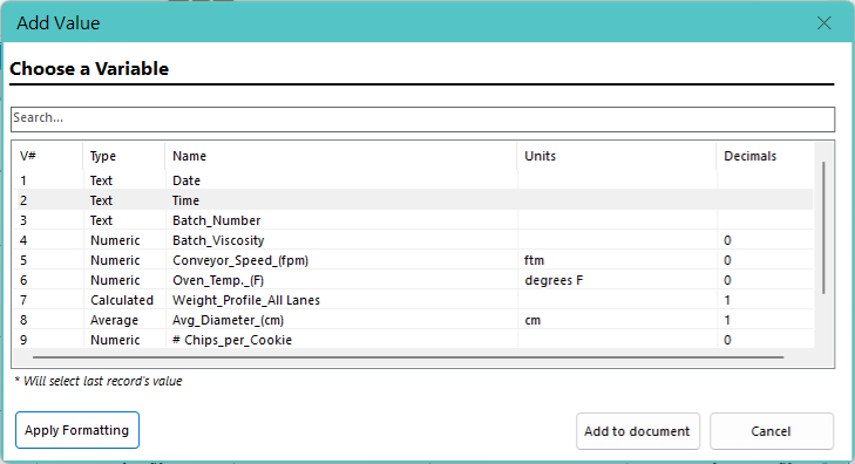
- Choose Add Value, Add Statistic, or Add System Value.
- Select the item you want to insert.
- Select Apply Formatting.
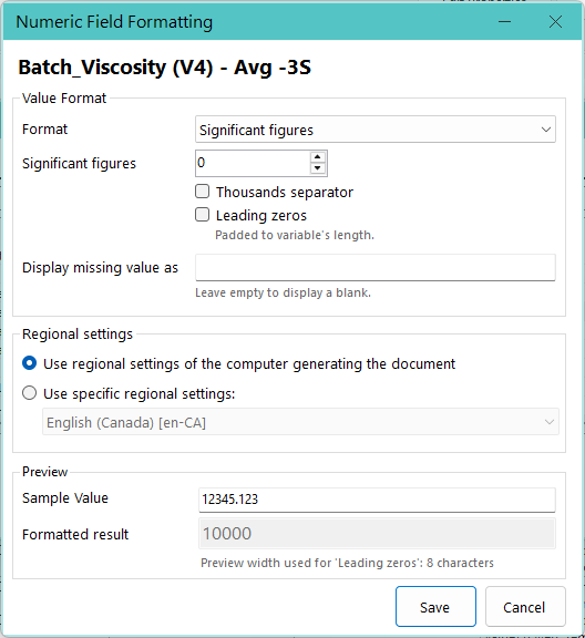
- Configure the formatting options.
- Review the Sample Value and Formatted result preview.
- Select Save to retain the formatting configuration.
- Select Add to document.
For example, to display a measurement with two decimal places, choose decimal-number formatting and set the precision to two decimal places. Check the preview to confirm the presentation before saving.
Common Formatting Examples
| Original value | Formatting choice | Document presentation |
|---|---|---|
| 12.345 | Two decimal places | 12.35 |
| 08/10/2026 (day/month/year) | Custom date pattern MMMM d, yyyy | October 8, 2026 |
| busitech | Uppercase text | BUSITECH |
| Missing value | Replacement text set to “Not available” | Not available |
Decimal places and significant figures offer different ways to control numeric precision. Choose the option appropriate for the reported result and check the preview.
Thousands separators and leading zeros cannot be combined. Neither option is available with scientific notation. Leading zeros pad the value to the Variable’s configured length.
Keep Dates, Times, and Numbers Consistent
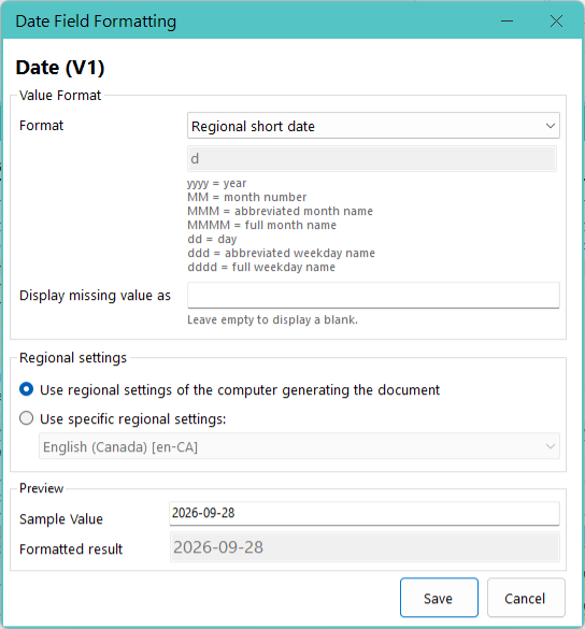
Numeric, date, and time formatting can follow the regional settings of the computer generating the document or a specific selected region.
Choose a specific region when documents must use consistent regional conventions regardless of which computer generates them. Use the generating computer’s settings when you want the document to follow that computer’s regional configuration.
For dates, you can choose a regional short or long date, a fixed layout, or a custom pattern. For example, yyyy-MM-dd presents October 8, 2026 as 2026-10-08.
Time formatting includes regional formats, 12-hour and 24-hour formats, and custom patterns.
Handle Missing Values Clearly
Use Display missing value as to specify replacement text for null, empty, or whitespace values. Leave the option empty to preserve a blank result.
This option is available for numeric, date, time, and text formatting. For example, enter “Not available” if that is the wording your document requires when a result is missing.
A date or time value that cannot be interpreted is handled differently: Quality Window retains the original input rather than treating it as a missing value.
Review Before Generating
After you configure formatting, the selection dialog displays a summary of your choices. Before adding the value to the document, you can use Edit Formatting to revise those choices or Clear Formatting to remove them.
Check the sample preview and the generated document to confirm that measurements, dates, times, text, and missing values appear as intended.
Existing inserted values without formatting retain their normal behavior.
Complete Report Documents Guidance
For instructions on creating and managing Report Documents, see the Quality Window Report Documents – Feature Guide.