
Quality Window includes built-in Date and Time variables (V1 and V2). However, there is no dedicated Date, Time, or DateTime field type for additional variables.
Instead, additional Date and Time fields are created using Text variables with predefined formats.
These formats control how values are entered and displayed, ensuring consistency across your application.
Common use cases include:
- Tracking multiple process steps (start time, end time, inspection time)
- Recording lab test timestamps separate from sample time
- Capturing operator-entered event times
Creating a Date or Time Variable
In QW Admin:
- Add a new variable
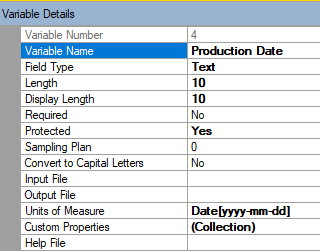
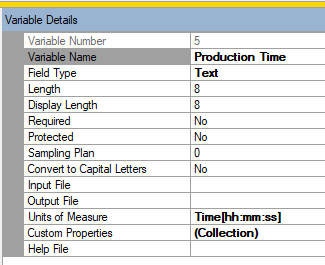
- Set the Field Type to: Text
- Set the Length based on the format you choose
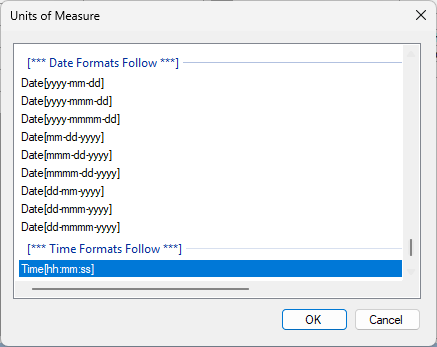
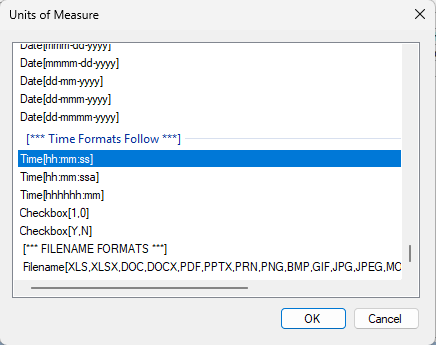
- In Units of Measure, select a Date or Time format from the list
Important:
Date and Time formats must be selected from the predefined list. Users should not manually type or modify these formats.
Supported Date Formats
Examples of supported Date formats include:
| Format Syntax | Example Value | Length |
|---|---|---|
| Date[yyyy-mm-dd] | 2026-04-20 | 10 |
| Date[yyyy-mmm-dd] | 2026-Apr-20 | 11 |
| Date[yyyy-mmmm-dd] | 2026-September-20 | 17 |
| Date[mm-dd-yyyy] | 04-20-2026 | 10 |
| Date[mmm-dd-yyyy] | Apr-20-2026 | 11 |
| Date[mmmm-dd-yyyy] | September-20-2026 | 17 |
| Date[dd-mm-yyyy] | 20-04-2026 | 10 |
| Date[dd-mmm-yyyy] | 20-Apr-2026 | 11 |
| Date[dd-mmmm-yyyy] | 20-September-2026 | 17 |
Note:
Full month formats (mmmm) require additional field length. In English, the longest month name is “September” (9 characters). Other languages may require more space depending on the system locale.
Supported Time Formats
Examples of supported Time formats include:
| Format Syntax | Example Value | Length |
|---|---|---|
| Time[hh:mm:ss] | 14:35:22 | 8 |
| Time[h:mm:ssa] | 2:35:22PM | 9 |
| Time[hh:mm:ssa] | 02:35:22PM | 10 |
| Time[hhhhhh:mm] | 000014:35 | 9 |
Note:
Time formats using “a” include AM/PM notation, which increases the required field length. Ensure the Length matches the selected format.
Result
These formats enforce consistent structure for Date and Time entry while remaining flexible for different reporting and process needs.

Calculating Time Differences
You can calculate the difference between two Date/Time values using:
@TIMEDIFF[Vx,Vy]
This function returns the result in seconds.
To convert the result:
- Minutes: divide by 60
- Hours: divide by 3600
- Days: divide by 86400
Example:
@TIMEDIFF[V3,V4]/60
This returns the difference in minutes.
Using Julian Dates in Calculations
Quality Window also supports Julian date functions such as:
@JULIAN[]
This returns the day of the year (1–365 or 366), which is commonly used in manufacturing environments.
Julian dates are often used to:
- Build production or batch identifiers
- Align with ERP or legacy systems
- Track production across shifts and days
You can combine @JULIAN[] with other functions like @YEAR[], @HOUR[], and @IF[] to create calculated identifiers based on your process logic.
Note:
More advanced use cases, such as building production IDs that account for shift cutoffs or overnight production, are covered in a separate example.