
In many environments, different teams are responsible for entering or reviewing different parts of the same dataset. A common example is Operations entering production data, while Lab personnel enter test results.
Quality Window does not enforce field-level security by user role directly. However, this can be effectively achieved using a combination of Views, Protected Variables, and DIR files.
This is a common and recommended approach when multiple roles interact with the same application.
Create views for each user group
Views are the primary tool for controlling what users see and interact with.
For each group (e.g., Operations, Lab), create a dedicated view that includes only the variables relevant to their role.
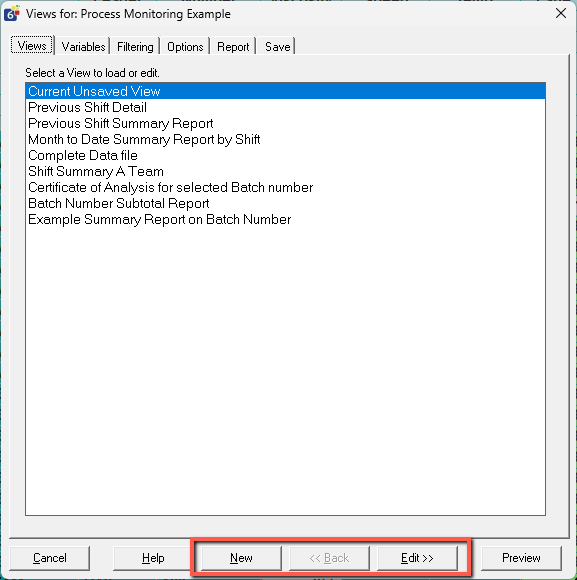
In QW Workstation:
- Open the application
- Open Views Manager
- Click New or Edit the “Current Unsaved View”
- Remove variables that are not relevant for that group
- Save the view (e.g., “Operations Entry”, “Lab Entry”)
This ensures each group is presented with a simplified, focused data entry experience.
If you are new to views, see our Views – An introduction tutorial for a full walkthrough.
Use protected variables with view overrides
Variables can be set to Protected in QW Admin. This defines the default behavior for the application.
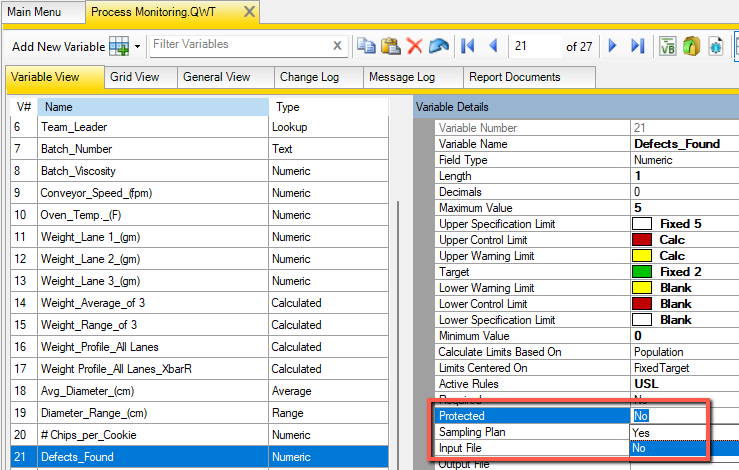
Views can override this setting, allowing you to control editability at the view level.
Typical setup:
- In QW Admin: set sensitive variables to Protected by default
- In Operations view: keep Lab variables protected
- In Lab view: allow editing for Lab variables while keeping Operations variables protected
This creates a controlled workflow where:
- Users can see the full record
- Edit access is determined by the view they are using
This flexibility is key to supporting multiple roles within a single application.
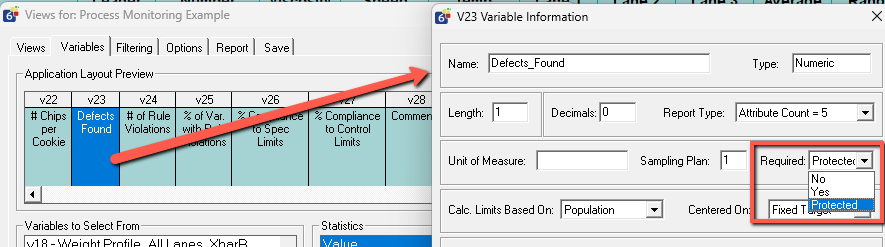
Reorder variables to match the workflow
Views allow you to reorder variables to create a more intuitive data entry experience.
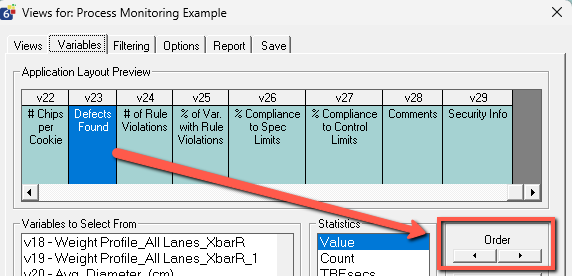
Best practices:
- Place required fields at the top
- Group related variables together
- Align the layout with the real-world process (e.g., production first, lab results later)
This is especially useful when multiple stations or teams are entering data at different stages.
For more advanced layouts, see Views – Summarizing and Views – Pivoting Tables.
Use DIR files to streamline the user experience
DIR files can be used to control which applications open and which view is loaded by default.
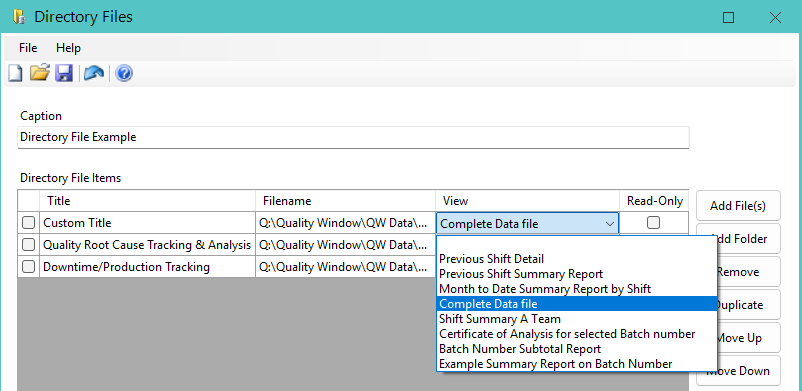
Recommended approach:
- Create one DIR file for Operations
- Create another DIR file for Lab
- Assign each DIR file through security
This allows each group to:
- Open only the applications relevant to them
- Automatically land in the correct view
Important: DIR files do not restrict access to other views once the application is open. Users can still switch views unless restricted by process or training. Security can limit access to view creation and management, but not switching between existing views.
If you are not familiar with DIR files, see our Directory Files guide article..
Common customer setup
A very common configuration is:
- Data Entry view: limited fields, focused on fast input
- Manager view: broader access with additional editable fields, along with informational fields such as calculated or lookup variables
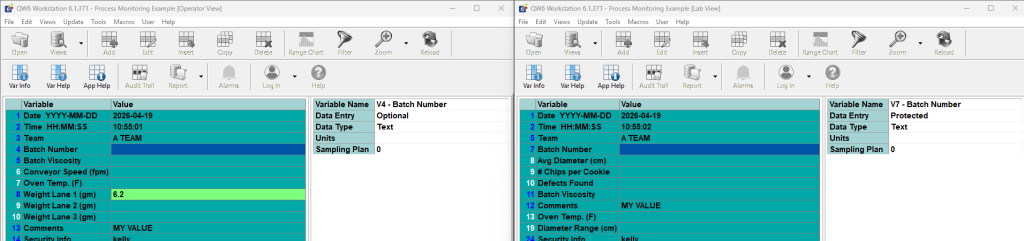
Managers can review and adjust records, while operators are guided through a controlled entry experience.
This approach is especially effective when:
- Multiple data entry stations exist
- Different steps of a process are captured in the same application
Summary
To implement role-based data entry in Quality Window:
- Use QW Admin to define default protection
- Use Views to override editability per role
- Use variable visibility and ordering to guide the workflow
- Use DIR files and security to streamline access
This combination provides a practical and proven way to manage multi-role data entry without requiring custom development.