
Overview
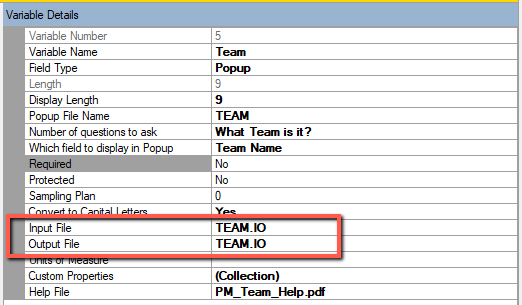
Input Files and Output Files control how values are brought into Quality Window variables and how they are shared with other systems during record creation.
An Input File defines how a variable value is populated when adding a record.
An Output File defines how a variable value is written out after the record is saved.
These features are commonly used to:
- Set default values
- Reduce manual data entry
- Integrate with external systems and devices
- Support automation workflows
Each variable can define one Input and one Output.
How It Works
Input is processed before the Add screen is displayed. This allows values to be pre-populated before the user interacts with the record.
Output is written when the record is saved. This allows finalized values to be shared externally or stored for reuse.
Choosing the Right Approach
If the value will never change
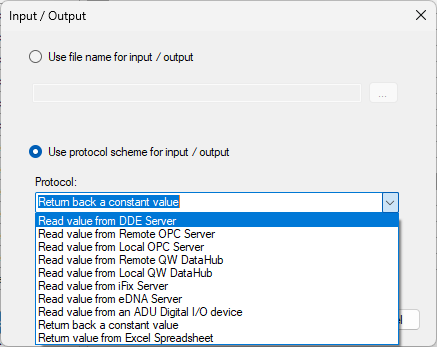
Use a constant value. Configure the Input using the protocol option “Return back a constant value” and enter the value using the format CON:My Value. This is the simplest method and does not require any external dependency.

If the value may need to change occasionally
Use a file-based Input. Store the value in a simple text file and assign it as the Input source. Updating the file will change the default without modifying the application.
If the value should remember what users entered
Use both Input and Output with the same file. The Input loads the previous value when adding a record, and the Output writes the new value when the record is saved. This is commonly used for Batch, Lot, or Operator fields.
If the value is controlled by another system
Use an external connection. Quality Window can retrieve values from integrated systems at runtime, allowing real-time or near real-time data to be used during record creation.
Supported Input and Output Sources
Quality Window supports the following connection methods:
- Constant values using CON:
- File-based input and output using text files
- DDE Server
- OPC Server (local and remote)
- QW DataHub (local and remote)
- iFix Server
- Excel Spreadsheet
RS-232 devices are supported indirectly by writing readings to a file, which is then used as an Input source.
Creating and Using Input Files
Input and Output Files are simple text files and do not require any special format.
To create a new Input File:
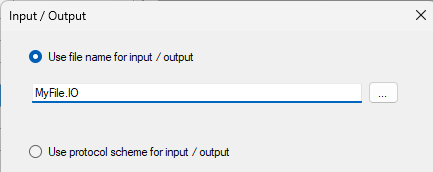
- Enter a file name in the Input File field
- The file does not need to already exist
- The .IO extension is recommended but not required, input files can have any extension.
If no drive or path is specified, the file will be created in the current working directory.
You can open or edit these files using standard tools such as Notepad. The file should contain a single value only, with no formatting.
Behavior to be aware of:
- If an Input File is specified but does not exist, it is ignored
- If an Output File is specified and does not exist, it will be created automatically
- If an Output File already exists, it will be overwritten with the latest value when the record is saved
Input Files are read when the Add screen is opened, and the value is applied before the screen is displayed. This value becomes the default for that variable.
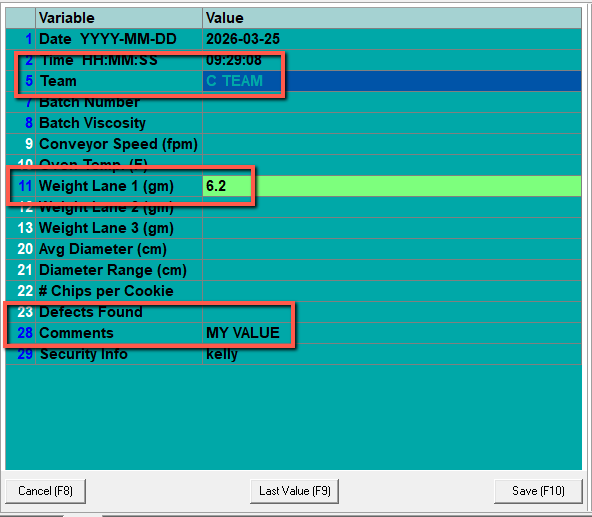
Output Files store the value when the record is saved, allowing the value to be reused or shared with other applications.
When the same file is used for both Input and Output, the file will always contain the last value entered. This allows the variable to automatically remember its previous value.
Input and Output Files can also be used to exchange data between Quality Window applications or with external systems, including utilities such as QWRS232 that write device readings to a file.
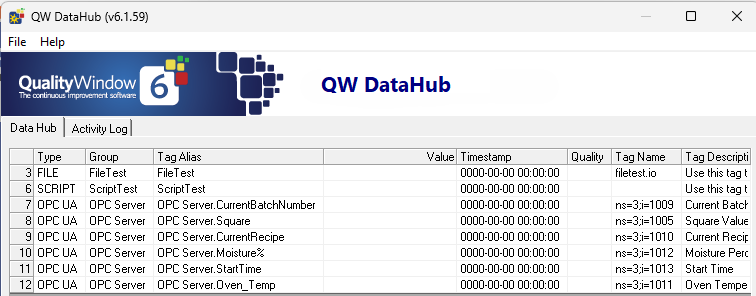
Leveraging QW DataHub
For integrations beyond simple file-based workflows, QW DataHub is the recommended approach.
DataHub provides improved performance and reliability compared to OPC and other legacy connection methods. It is well suited for environments where values are coming from plant systems, live tags, or streaming sources.
For more information, refer to the QW DataHub documentation.
Working with File Locations
When using file-based Input and Output, file location affects how applications behave when moved or copied.
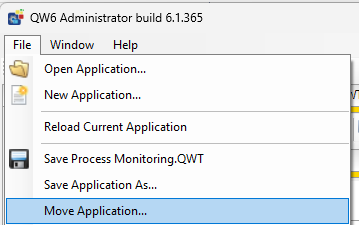
If the file is stored in the same folder as the application, it will move with the application when copied or deployed.
If the file is stored outside the application folder, it will not be included when the application is moved. This can be useful for shared or centralized values but requires careful path management.
Sample Applications
Quality Window includes sample applications that demonstrate how Input Files and Output Files are used in practice.
These can be found in:
C:\Busitech\QW6\Sample Applications
The sample applications show:
- How Input Files populate values automatically
- How Output Files write values after Save
- Basic patterns for remembering values and integrating with external data
Reviewing these examples is a good starting point for understanding how to apply Input and Output in your own applications.
Automation with QWAdd
Input and Output configurations are central to automation workflows using QWAdd.
QWAdd applies Input sources first to build the record in memory, then saves the record, and finally executes Output actions. This allows external systems or scripts to drive record creation and consume results.
For more advanced automation scenarios, refer to the QW automation guide.
Key Notes
- Input is only applied during Add, not when editing existing records.
- Output is only written after a record is saved.
- File-based Input and Output expects a single value with no formatting.
- Fields can still be edited by users unless marked as Protected.
Related Resources
- How do I create a default value in Quality Window?
- Input/Output Files in Quality Window: Enhancing Data Connectivity
- RS232 Real-Time Data Collection with Quality Window SPC
- Getting Started Guide
- Automating Data Collection in QW
- QW DataHub
- How to Make a Variable Read-Only (Protected) in Quality Window