
Quality Window evaluates data as it is loaded. This includes statistical calculations, colours, alarms, popup values, lookup values, and other application logic.
Because of this, performance depends on the total amount of processing required, not only the number of records in the application.
Applications can become slower when they are:
- Long, with many historical records
- Wide, with many variables
- Both long and wide
- Accessed over a slow network
- Opened on a workstation with limited available resources
Use a Smaller Dataset for Routine Work
For most routine data-entry use cases, we recommend loading between 100 and 500 recent records.
This normally provides enough recent data for statistical review while maintaining a responsive experience.
When no default View is configured, this is controlled by the Number of Historical Data Points setting in QW Admin.
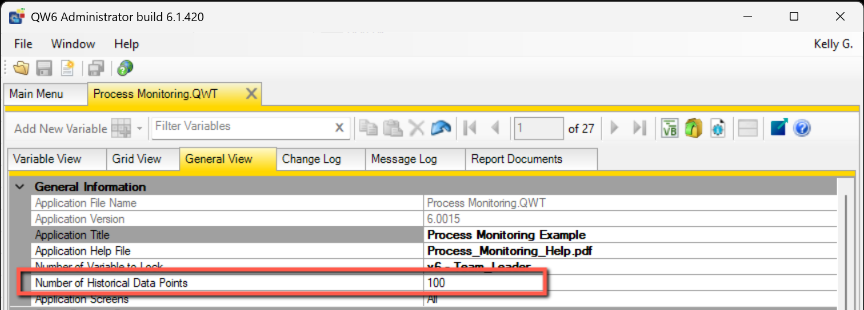
Avoid setting this value to -1 for applications with a large record history. A value of -1 tells Quality Window to load all records.
Review the Default View
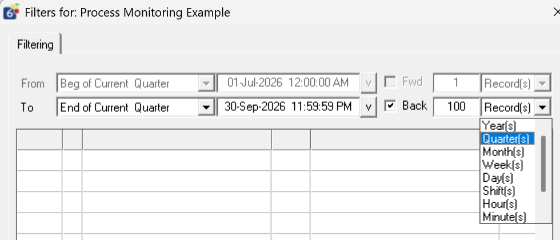
If the application opens with a default View, the Number of Historical Data Points setting is ignored.
In this case, review the filter saved with the default View and confirm that it is not loading more records or variables than required.
Use Views for Different Tasks
Different tasks may require different amounts of data.
For example:
- A data-entry View can load a smaller number of recent records.
- A shift-review View can load records for the current or previous shift.
- A historical-review View can load a larger date range when needed.
This allows users to access historical information without requiring every application session to load the full dataset.
Review Both Records and Variables
The number of records is only one factor.
For example:
- 100 records with 100 variables will generally load quickly.
- 20,000 records with 100 variables requires much more processing.
- 100 records with 700 variables may also load slowly.
When troubleshooting performance, review both the number of records being loaded and the number of variables included in the View.
Additional Performance Factors
If the dataset is already appropriately limited, also review:
- Network performance
- File-server response time
- Available workstation resources
- Other applications running on the workstation
For instructions on limiting the current dataset, see: Filtering Data in Quality Window.