
Quality Window stores dates in the YYYY-MM-DD format and Time Format as HH:MM:SS (24hr format) exclusively but sometimes users want to be able to see the date on the logsheet in a differently. To change how these formats are changed do the following:
- Open QW Workstation
- Select Tools ➡️ Settings
- You will find both Time and Date format options in the general sections.
- Select the formats that best suit your teams needs.
- This setting is workstation specific and will require this setting to be changed on all QW Workstation instalations.
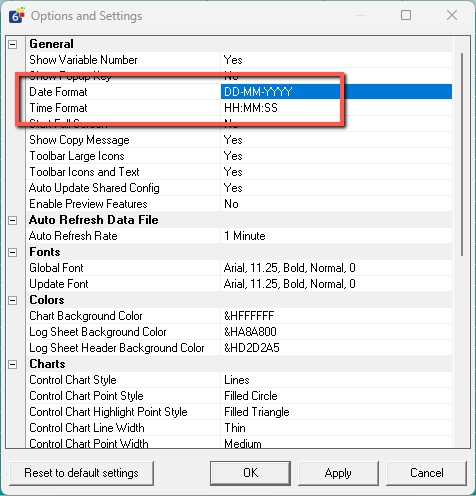
Date formats available:
- YYYY-MM-DD
- MM-DD-YYYY
- DD-MM-YYYY
Time formats available:
- HH:MM:SS (24 hour format)
- HH:MM:SS a/p (AM/PM format)
Note: The date and time are stored internally as YYYY-MM-DD and HH:MM:SS respectively. The above settings will only affect the display of date/time on screens such as the Log Sheet only and will not change the format on the Add Screen.